Export pipeline

Video codecs for telemetry overlays

The codec you pick decides how big your file is, how long the render takes, and where the result will actually play. This guide walks through every export option in OVRLEY, i.e. transparent overlays vs final videos, H.264 vs H.265 vs ProRes vs QT RLE, so you can pick the right one for your purpose.

  • Transparent overlays let you do editing-heavy work in Premiere, Davinci Resolve, or Final Cut.
  • Final videos bake the overlay into your footage and are ready to upload.
  • Hardware acceleration can speed up H.264 and H.265, but ProRes and QT RLE are a different story.
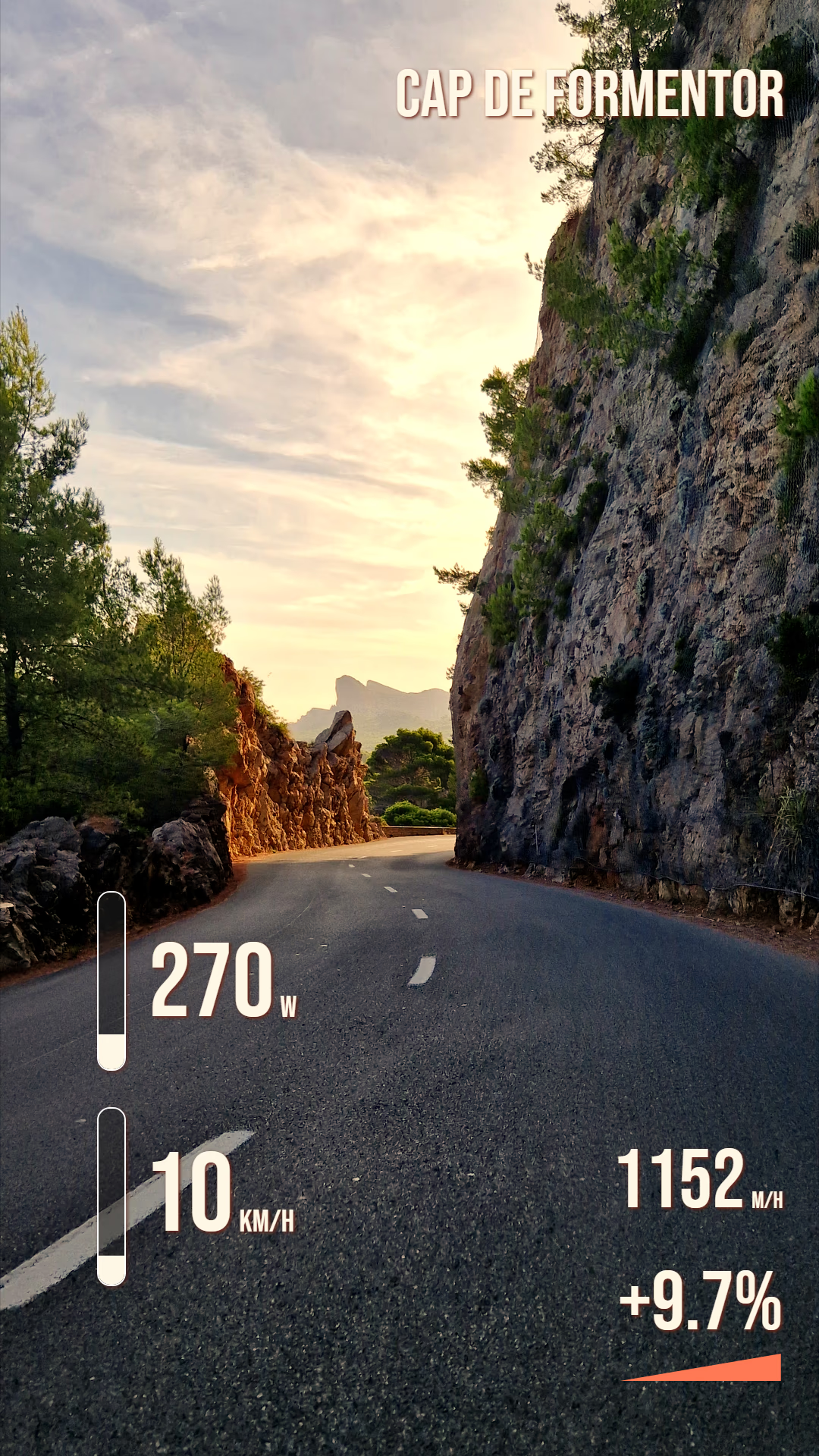
Portrait coastal road footage with location, power, speed, elevation, and gradient widgets.

First decision: transparent overlay or composite video?

Before you think about codecs, decide what you actually want to export. This single choice changes which codecs are available and how you should use them. The main question is if you plan to do heavy editing work in a video editor, such as cutting or footage color grading, or if you want a single file ready to upload.

Transparent overlay

Best for
Compositing in a video editor like Premiere, Resolve, or Final Cut.
What it exports
Overlay graphics with alpha channel, no underlying footage.
Watch out for
Larger files and slower encoding. Some editors handle alpha better than others.
Recommended when
You still want to cut, color grade, or adjust footage independently of the overlay.
alphaProResQT RLE

Final rendered video

Best for
A single file for upload to YouTube, Instagram, or share directly.
What it exports
Your footage with the overlay baked in; one self-contained file.
Watch out for
You cannot separate the overlay from the footage after rendering.
Recommended when
You want to finish the whole job inside OVRLEY without another editing step.
compositeH.264H.265
Your editing workflow should drive this choice.

Every codec in OVRLEY, explained

OVRLEY exposes a focused set of codecs rather than every encoder FFmpeg supports. Each one exists because it solves a specific delivery problem. Here is what each does well, where it falls short, and when to reach for it.

H.264

Best for
Final videos for social media, YouTube, and broad playback.
Benefit
Compressed video with no alpha channel. Quality drops at very low bitrates.
Watch out for
Cannot produce transparent overlays. Not the smallest option for 4K.
Recommended when
You want a final video that plays everywhere with reasonable file size.
universalhardware-accelno alpha

H.265

Best for
Final videos where file size matters more than universal compatibility.
Benefit
More efficient compression than H.264 with smaller files at similar quality.
Watch out for
Older devices and some editors handle HEVC poorly. Licensing is messy.
Recommended when
You need smaller files and your target platform supports HEVC playback.
efficienthardware-accelno alpha

ProRes

Best for
Transparent overlays for professional editing workflows.
Benefit
High-quality video with alpha channel. Professional delivery format.
Watch out for
Very large files. Poor hardware acceleration support.
Recommended when
Compositing in Premiere or Davinci Resolve and maximum quality.
alphalossylarge files

QT RLE

Best for
Lightweight transparent overlays with alpha channel.
Benefit
Faster than ProRes and much smaller, may show banding with gradients.
Watch out for
QuickTime-specific format. Some editors and players do not support it well.
Recommended when
The overlays do not use complicated color or opacity gradients.
alphalosslessquicktime
Codec availability can be tricky, but OVRLEY only shows options that actually work on your machine.

Decision guide

Compatibility vs speed vs file size

You cannot optimize all three at once. A codec that plays everywhere is usually not the fastest or the smallest. A codec that is tiny might not play on your phone. A codec that is fast might produce enormous files. Here is how to think about the tradeoff before you pick.

See the benchmarks Choose codec based on what happens after the export.
OVRLEY export settings panel with codec options.
OPTION 01 H.264

EXPORTING A FINAL VIDEO

MOST USERS SHOULD START HERE

If you are uploading to YouTube, Instagram or other social media, or simply want a file that plays everywhere, choose H.264. It offers the broadest compatibility and is supported by virtually all hardware encoders and devices.

OPTION 02 H.265

STORAGE OR 4K DELIVERY

WHEN FILE SIZE MATTERS

Choose H.265 when you need smaller files without giving up visual quality; ideal for 4K exports, long recordings, and cloud storage, but some older devices and software may not support it as reliably - make sure your target audience can play it.

OPTION 03 ProRes

PROFESSIONAL EDITING

WHEN THE OVERLAY IS NOT THE FINAL VIDEO

If your video needs more time in the oven, and the overlay will be imported into Premiere Pro, DaVinci Resolve, Final Cut Pro, ProRes 4444 preserves maximum quality and transparency. Expect large files in exchange for a smooth post-production.

How long does each codec actually take?

Our own benchmark data show how OVRLEY performs on exporting a real 10-minute clip. using different settings. Toggle between full video and transparent overlay exports, and between 1080p and 4K, to see how codec choice changes render time and file size.

Ryzen 5 5600X
NVIDIA RTX 4070
32GB DDR4, SSD
H.264 CUDA
SPD
SIZ
0:00MIN0MB
H.264 QSV
SPD
SIZ
0:00MIN0MB
H.264 AMF
SPD
SIZ
0:00MIN0MB
H.264 NVIDIA
SPD
SIZ
0:00MIN0MB
H.264 CPU
SPD
SIZ
0:00MIN0MB

Hardware acceleration

Hardware acceleration in a nutshell

OVRLEY splits the export into two phases. The overlay frames are first drawn on the CPU and this is where widget layout, font rendering, and the overlay compositor run. Each frame is then sent to the encoder and this is where hardware acceleration makes a difference: instead of encoding each frame on CPU and blocking the first step, OVRLEY can send raw frames directly to a chip on your GPU/iGPU that is dedicated and optimized for encoding.

Hardware acceleration often cuts encode time by a factor of 3–5x for H.264 and H.265. The catch is that not every combination of codec, hardware generation, driver, and operating system exposes a working option. OVRLEY does not guess, but it tests every potential encoder at launch with a "fake" synthetic frame. If that test frame fails, the option is disabled in the UI entirely, so you never pick an encoder that would crash.

On NVIDIA GPU, NVENC/CUDA requires driver v610 or newer because FFmpeg needs a recent version of the NVENCODE API. On Intel, Quick Sync is only available on CPUs that include the media engine, typically Core processors from Haswell onward. AMD AMF is supported on every modern RX GPU, but its support depends on Ryzen CPU model or generation. On Linux, VAAPI can work if NVENC/AMF is not supported. If you are on macOS, VideoToolbox is available on pretty much every modern machine.

What about hardware-acceleration for Prores? FFmpeg recently added support for Vulkan acceleration, but it is a very new feature. It is either still not optimized very well or I was not able to configure it properly — it always performed worse than CPU-only ProRes. In any case, Vulkan is enabled in OVRLEY so you can give it a try, but don't expect it to be faster.
HARDWARE ACCELERATION

OVRLEY supports these encoders

Each encoder targets specific hardware and the availability depends on your GPU or CPU generation, drivers, and operating system.

NVIDIA NVENC GeForce GTX/RTX and Quadro GPUs
AMD AMF Radeon RX 5000+series and Ryzen CPUs with integrated GPU
Intel QSV Intel Core Gen6+ (Skylake) with integrated GPU.
VideoToolbox Intel Macs (2017+) and all Apple Silicon Macs (M1+)
VAAPI Intel Gen9+ iGPU or AMD Radeon RX 5000+ on Linux
CPU software Always available fallback; no special hardware needed
OVRLEY probes every encoder at startup amd if an option is disabled, it genuinely does not work on your system.
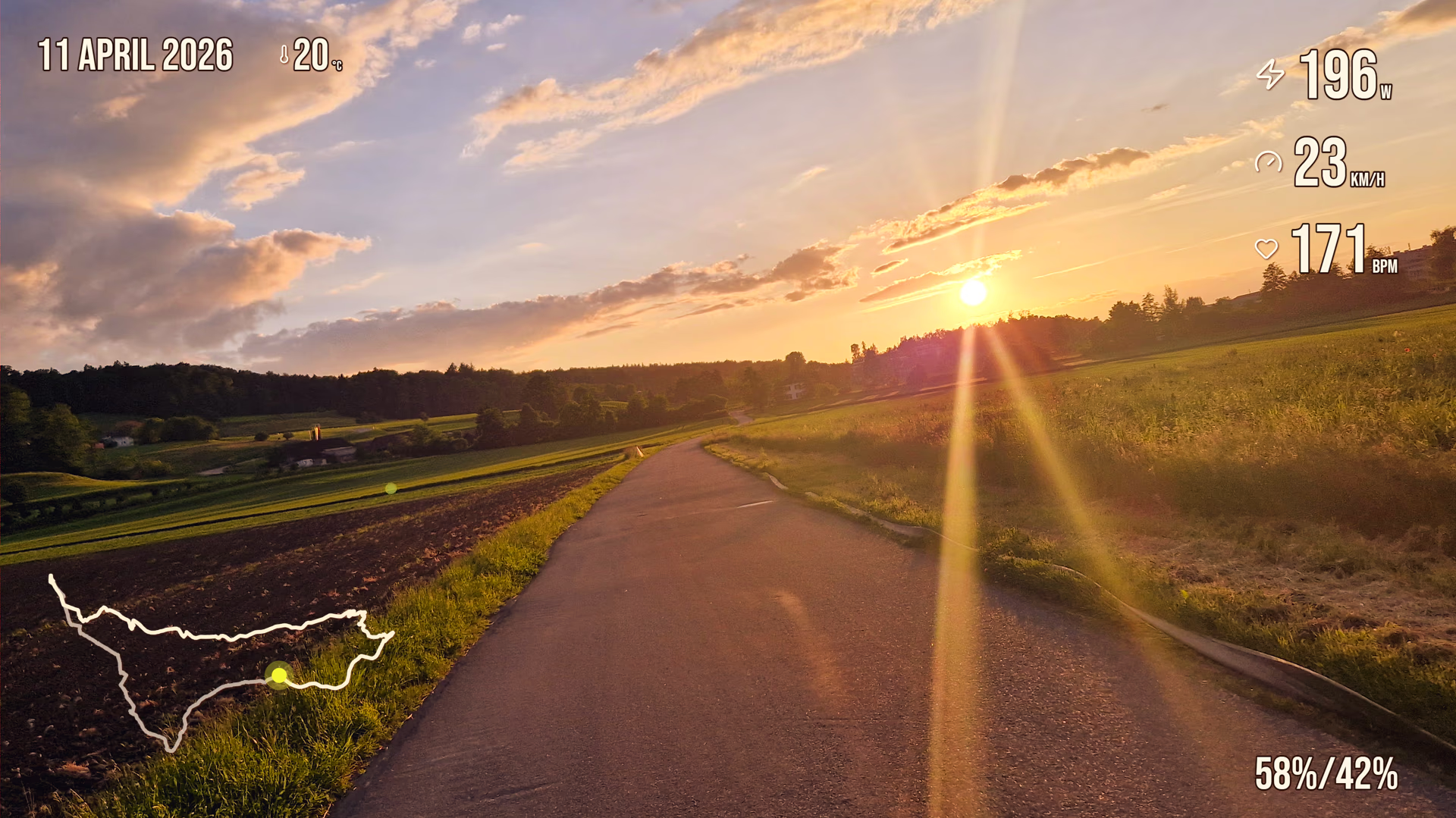
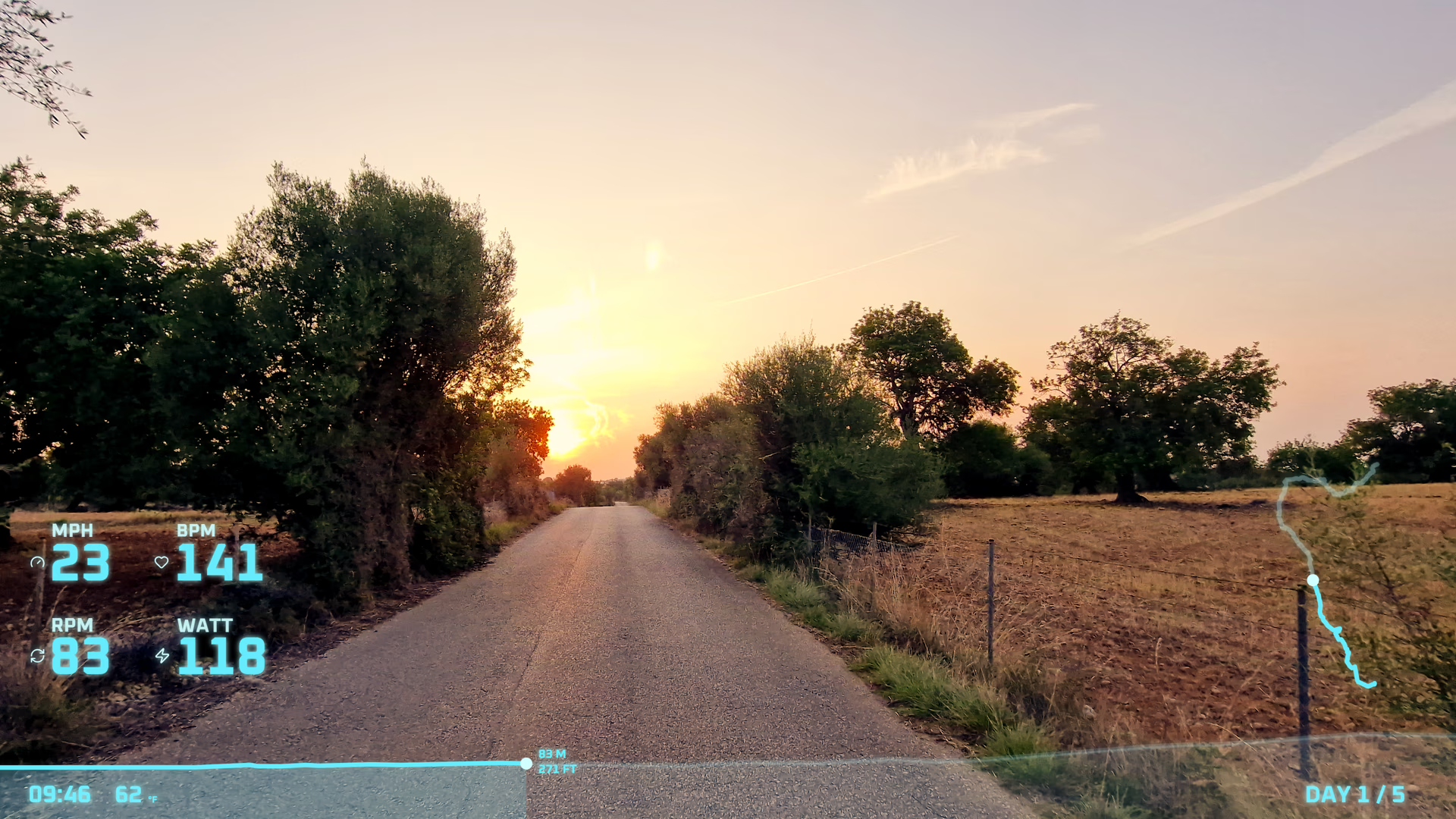
Sunset road footage with route, speed, cadence, power, heart rate, and elevation widgets.

Before you press export, check these

A few habits that make exports faster and more predictable.

Export only what you need

Do not export the entire activity unless you need it all. Trim to the section you actually want because shorter clips render much faster and smaller.

Match resolution

Export at the same resolution as your source footage; upscaling slows down the render without much benefits for overlays.

Check acceleration

Before a long render, try out avaiable hardware-accelerated encoders on shorter clips. If your preferred codec is CPU-only, expect longer export times.

Adjust widget update rate

It controls how often widgets refresh relative to the video. It is a tradeoff between render speed and smoothness, but can be great for less dynamic metrics.

Exporting a short test clip first is the fastest way to validate your settings.

Pick your codec and render

OVRLEY is built for local telemetry overlay work: design the overlay, choose the export mode and render with the codec that matches your delivery target. Everything stays on your machine.

Free, local, and built for action camera footage.